
How to listen to your audience with Comments
Updated October 17, 2026
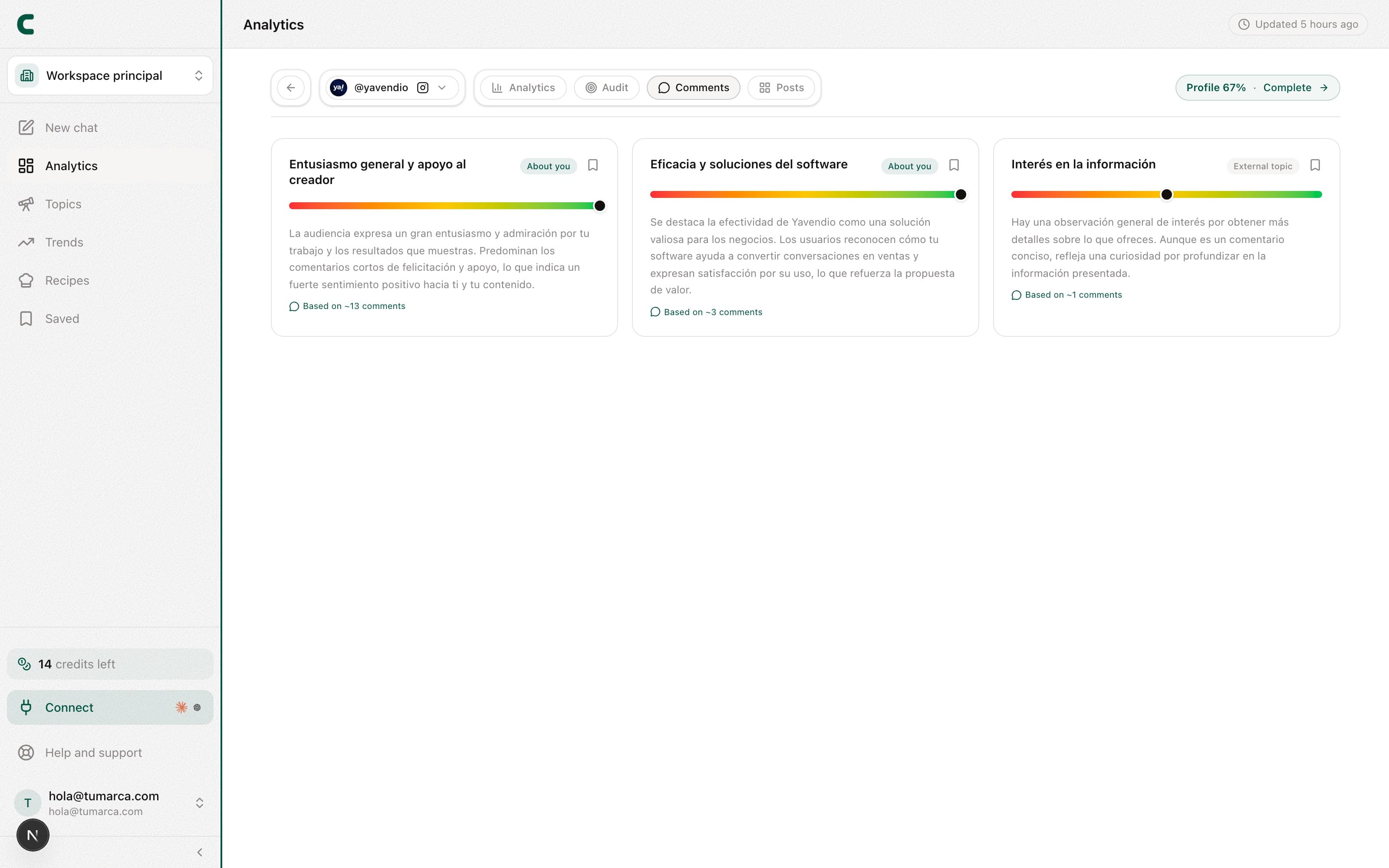
Comments is one of each account's tabs in Tracking: it summarizes what that account's audience feels and talks about by analyzing the real comments on its posts. That way you know what to reinforce and what to adjust without reading hundreds of comments one by one. It exists on your own accounts and on your competitors alike.
Whose comments you're reading
Every sentiment topic is attributed to the account its comments appeared on. With the account switcher you choose which audience to read:
- One of your accounts: only that network's topics, so you can compare how each audience reacts.
- All your networks: the topics across all your own accounts, together.
- One competitor: what their audience is telling that account.
- All your competitors: the topics across every account you track, together.
How to use it
Open an account in Tracking
Tap its row in the accounts table and pick the Comments tab.
Review the sentiment topics
Each topic shows how the audience reacts, backed by sample comments.
Save what's useful
Send the insights you want to reuse to Saved.
Turn it into content
Take a recurring question or request to the chat with Scouty and ask for ideas to answer it with a post.
We need recent comments on posts to analyze, and the analysis updates automatically. On a freshly added account, comments are picked up by a process that runs every hour, so they can take up to an hour to appear.
Frequently asked questions
No sentiment shows up.
We analyze comments automatically, and an account's first analysis is ready within 24 hours. If it's still empty the next day, check in the Tracking accounts table that the account is tracking properly.
What do "About you" and "External topic" mean?
"About you" are topics where the audience mentions the account directly; "External topic" are topics they discuss without naming it.
I picked one of my accounts and it says there's nothing yet.
Each topic is attributed to the account its comments appeared on. If that account has few recent comments, its topics may take until the next analysis to show up.
Was this article helpful?
Related articles
- How to read your Tracking dashboardTracking opens on the table of your accounts and competitors. Tap any row and you get that account's full overview: metrics, pillars, hooks, posts and comments.
- How to track your competitors and see what works for themTrack competitors from the Tracking table and each one gets its own full analytics: their pillars, hooks, posts and comments. And an all-competitors view shows you just their outliers.
Didn't find what you were looking for?
Reach us from the app via the Help button at the bottom of the menu and we'll reply by email.