
How to connect ContentScout with Claude or ChatGPT
Updated November 3, 2026
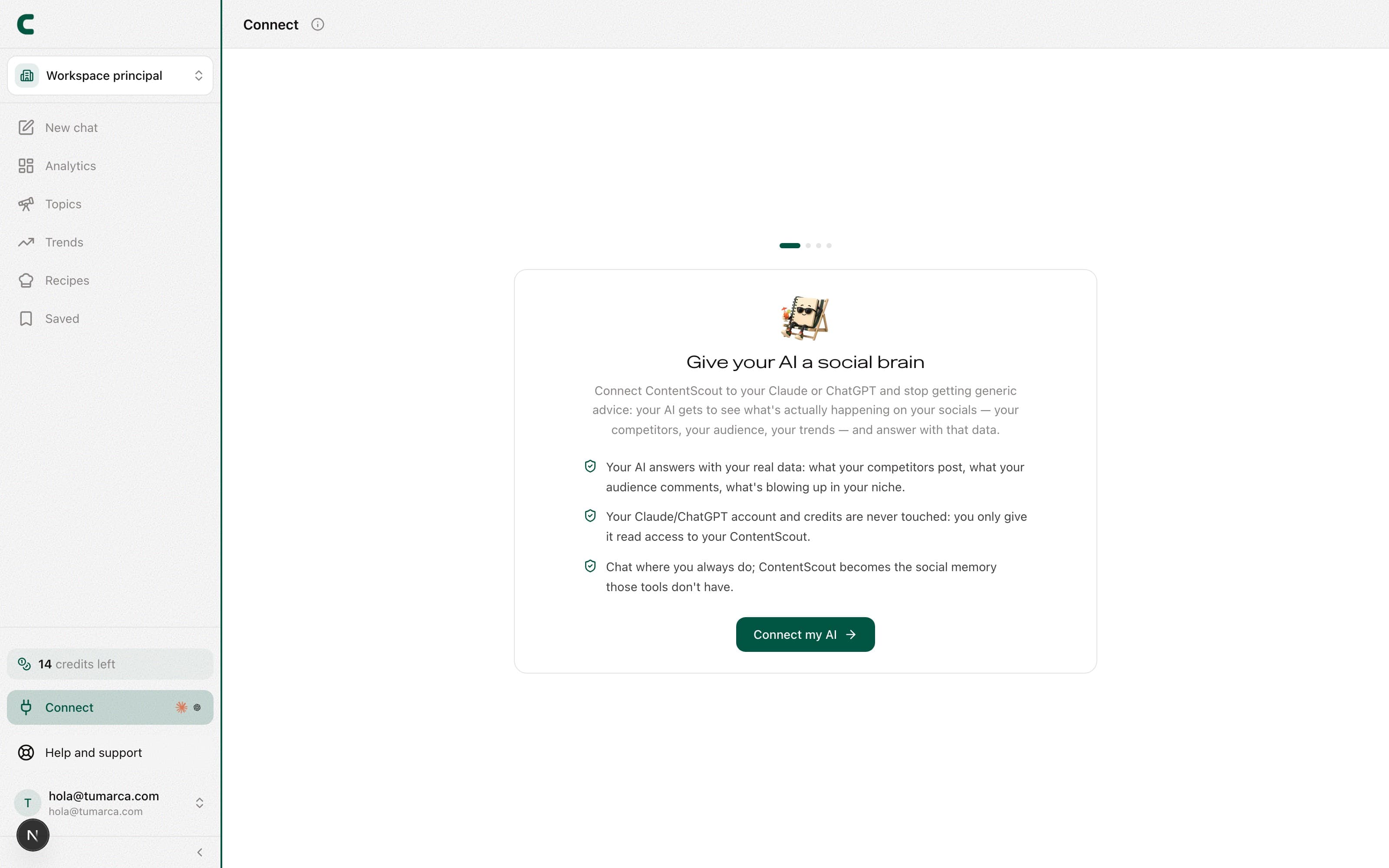
From Connect, the Connect to Claude / GPT entry in the sidebar's execute group, you can link ContentScout to your AI assistant so it works with your own data: your brand context, your ideas, your outliers, your trends, the hashtags and audios that are performing, the viral formats we curate, what you've saved and, if your account has them enabled, your campaigns with their analytics. It's tied to your account: your assistant reads your information and, only if you allow it when connecting or under Connections, can take a few actions, such as adding or removing your own networks, editing your bio, saving or removing items in Saved, marking your insights, editing your strategy, or starting or stopping the tracking of competitors, posts and keywords (removing one of your networks or stopping a competitor spends one of the cycle's rotations; deleting a keyword deletes its history), and your assistant can ask you to confirm each one first. It can also use the credit-spending actions (listed below), with their own permission and your yes before each charge. Nothing moves money. It's a paid feature: you have it from the moment your card-backed trial starts. It only stops answering if the account ends up with no plan.
Connect your tool
On the page you'll see a card for each tool. Tap it to copy its config, then follow the steps for the one you use.
Claude (web & desktop)
Open Customize → Connectors.
Click "+", then "Add custom connector".
Paste the URL and confirm.
Sign in with your ContentScout account.
In any chat, open "+" → Connectors and switch ContentScout on.
You add it once to your Claude account and it shows up in both the web app and the desktop app. On the Free plan you can only keep one custom connector. In Team and Enterprise, an organization Owner has to add it first; everyone else then switches it on from Connectors.
Claude Code
Paste and run the command in your terminal.
Type /mcp and pick "contentscout".
Click "Authenticate" and sign in.
ChatGPT
Open Settings → Apps → Advanced settings.
Turn on Developer mode.
Add a connector using the URL.
Sign in with your ContentScout account.
Works on any Claude plan; on ChatGPT it needs Developer mode (Plus plan or higher).
If you connected before actions existed, turn them on under Connections, on the same Connect page. Disconnecting and connecting again also asks you. If you don't see the Allow actions box when you connect, or the switch under Connections, actions aren't available for your account and your assistant only reads your data.
What you can ask it
- Cross what's trending with my pillars and give me 5 hook-driven ideas in my voice.
- Take a post from a creator I track that's blowing up and rewrite it in my style, without sounding copied.
- Read my audience's comments, spot their doubts, and turn them into content that answers them.
- Explain why my best-performing posts worked and give me a repeatable formula.
- Cross the topics I'm not covering with what's rising and build my 2-week calendar.
- Tell me which hashtags and which audio to use for my next reel, and why those.
- Take one of the curated viral formats and adapt it to my niche with a full script.
What your assistant can read and do
Your assistant sees up to 48 tools when it connects: 27 read and 21 actions. The ones for campaigns, Deep Scroll and Meta ads only appear on accounts that have them enabled. Without them it sees 41: 23 read and 18 actions. The read tools change nothing, run no analysis and spend no credits. The actions are free, except analyzing a post's comments, unlocking a post's transcript or analysis, importing a post, creating a recipe from another creator, generating your personal recipe and launching a Deep Scroll (below), only run if you turned actions on for that connection, and your assistant can ask you to confirm each one. Anything you save can be removed again; removing a note, however, deletes its text, and removing an idea also deletes the outlines and scripts saved under it, and that cannot be undone. Deleting a keyword also deletes its daily history and cannot be undone, and deleting a recipe cannot be undone either. Stopping a competitor or removing one of your networks spends one of the cycle's rotations. The ones marked as paid answer with a clear notice if your plan doesn't include them, and the rest keep working.
- list_workspaces: your workspaces and which one is primary. The first step if you have more than one.
- get_workspace_briefing: a workspace's summary in one call: who you are, how your channel is doing, your competitors and their best posts. The starting point of a conversation.
- get_brand_context: your brand profile and voice: summary, pillars, CTAs and samples of your own posts.
- get_channel_overview: how your own channel is doing: recent posts with metrics, followers per network and your own outliers.
- get_competitor_outliers: the best-performing posts from the accounts you track, measured against each account's own median.
- get_competitor_analytics: the per-competitor summary: followers, pillars, hook types and their outliers.
- get_sentiment: the topics and sentiment in the comments of your audience and your competitors' audience.
- search_comments: finds specific comments by text, account or likes, with author and date.
- get_content_ideas: your generated ideas, and one idea's expanded outline if you pass its id.
- get_saved_items: everything in Saved, as one timeline.
- get_post_transcript: the full transcript of a post you already unlocked. It never spends credits.
- get_trending_topics: emerging topics for your niche, with their opportunity angle.
- get_trending_hashtags: a niche's hashtag leaderboard, with sample posts.
- get_trending_audios: the audios performing in your niche or in TikTok's global trending feed.
- get_viral_trends: the viral formats we curate, with examples.
- get_help: this help center, so the assistant can explain how ContentScout works without making it up.
- get_account_status: your plan, credits, how many accounts, posts and keywords you have left, what is paused, and whether this connection has actions on.
- get_recipes (paid plan): your style recipes and the shared presets.
- search_viral_library (paid plan): the global library of viral posts, filtered by niche, text, network or account size.
- get_keyword_searches (paid plan): your keyword listening searches, with their evolution.
- get_tracked_posts (paid plan): the posts you watch daily and how far they moved since you added them.
- get_insights (paid plan): the findings we detected that you haven't acted on yet.
- get_campaigns and get_campaign_analytics (enabled per account): your campaigns and one campaign's full analytics.
- get_account_ads (Pro and Ultra plans): the Meta ads of an account you follow, with its summary, its winners and the ones also posted organically. Each ad can be saved with save_item, and its transcript or analysis unlocked like another account's post.
- get_deep_search: your Deep Scrolls, how one that is running is going and one search's full report, on accounts that have Deep Scroll.
- get_action_quote: the price of a credit-spending action before it runs: what it costs, what it does and the balance you'd keep. Getting a quote charges and reserves nothing.
Actions (only with actions on)
- save_item / unsave_item: save to or remove from Saved a competitor's post, one of your posts, a keyword post, a trend, a sentiment topic, an idea or a note. Always on something that already exists in your account.
- track_post / untrack_post (paid plan): start or stop tracking a public Instagram, TikTok or YouTube post daily, as in Tracking > Tracked posts. When you stop tracking it, its history is kept, and the slot it frees stays blocked for 24 h.
- create_keyword / delete_keyword (paid plan): create or delete a keyword search on the networks you choose, as in Keywords. The first search takes a few minutes; deleting it also deletes its daily history.
- track_account_ads / untrack_account_ads (Pro and Ultra plans): start or stop tracking the Meta ads of an account you already track, as in Tracking. It uses no extra slot and spends no rotation.
- track_account / untrack_account (paid plan): start or stop tracking a competitor, or add or remove one of your networks, on Instagram, TikTok or YouTube, as in Tracking. Before adding an account we check that it exists and is public; adding one of your networks re-analyzes your profile. Stopping it keeps what was already collected and spends one of the cycle's rotations, and your last network cannot be removed.
- set_insight_status (paid plan): mark an insight as done or dismissed, as in Insights, or make it pending again if it was marked by mistake.
- update_brand_strategy: change your strategy as in the Your strategy card in Workspace information: rename your pillars or change your CTAs or your audience countries. It saves instantly, without re-analyzing, and your already-classified posts move to the pillar's new name.
- update_brand_bio: change your bio as Save and analyze does in Workspace information, and re-analyze your profile with it. If the bio is already that one, it still re-analyzes your profile, like the button.
- analyze_post_comments (paid plan, spends credits): analyze the comments of a post you track, as Analyze comments does on the post's page, and save the analysis there. It costs 1 credit per analysis and charges again every time it runs. If the comments can't be fetched, there are none, or the analysis fails or takes too long, we refund the credit; if the analysis ran but couldn't be saved, we don't.
- unlock_post_transcript (paid plan, spends credits): unlock and get the full transcript of a post: another account's (a competitor's, a keyword's, the Library's or one in Saved), one of yours or one you track, as Generate transcript does on the post's card. It costs 1 credit the first time and is free after that: for the whole account if it's another account's, and for the workspace if it's yours or one you track; if it was already unlocked, you get it without a charge or a confirmation. A post with no speech, on X, or an Instagram video longer than 2 minutes has no transcript, and nothing is charged. If the network doesn't answer after charging, we refund the credit.
- unlock_post_analysis (paid plan, spends credits): unlock and get a post's analysis, as Generate analysis does on the post's card. For another account's post (a competitor's, a keyword's, the Library's or one in Saved) it brings the hook, structure, tone and why it worked; for one of yours, why it performed as it did against your median. It costs 2 credits the first time and is free after that: for the whole account if it's another account's, and for the workspace if it's yours; if it was already unlocked, or it's an outlier from your competitors, you get it without a charge or a confirmation. If it can't be generated after charging, we refund the 2 credits.
- import_post (paid plan, spends credits): import a post by its TikTok, Instagram or YouTube link, as Analyze a post does in Saved: it fetches it, analyzes it (hook, structure, tone and why it worked) and saves it to Saved with the analysis unlocked. It costs 2 credits (1 to fetch it and 1 for the analysis); if it was already in Saved, it tells you so without a charge or a confirmation. If something fails after charging, we refund the 2 credits.
- create_recipe (paid plan, spends credits): create a style recipe from another creator's public profile, as Add recipe does in Recipes: it reads up to 50 of their recent posts, picks the top 3 and analyzes their tone, hooks and structure. It costs 2 credits. If you already have a recipe from that creator, it tells you so without a charge, and you can create one per account every 30 seconds. If the posts can't be fetched, none has enough text, or the analysis fails, takes too long or can't be saved, we refund the credits.
- delete_recipe (paid plan): delete a recipe you created from another creator, as Delete recipe does in its detail. It cannot be undone, and creating it again costs credits again. Your personal recipe and the presets cannot be deleted.
- generate_own_voice_recipe (paid plan, spends credits): generate your personal recipe from up to 3 of your best posts on the networks the workspace tracks as yours, as Generate does on your personal recipe's card. It costs 1 credit. If you already have it, it tells you so without a charge and doesn't generate it again; if we haven't collected your posts yet, it doesn't charge either. If the analysis fails, takes too long or can't be saved, we refund the credit.
- start_deep_scroll (spends credits, on accounts that have Deep Scroll): launches a Deep Scroll as Scouty does. First it shows you what it understood and the price (50 credits) and waits for your yes. It usually takes 5 to 20 minutes; the report is saved in Saved and we email you a summary. If it ends without a report, we refund the credits.
Actions that spend credits need their own permission: the Allow actions that spend credits box when you connect, which starts unchecked, or that connection's Spend credits switch under Connections, with actions on. Before charging, your assistant asks for the price with get_action_quote, tells you the price and waits for your yes in the conversation; only then does the action run, and it charges only once even if it is retried. Your AI app may also show its own approval prompt for that call: it's the same confirmation. If you don't have enough credits, it says so and charges nothing.
Was this article helpful?
Related articles
- How to organize everything you keep in SavedSaved gathers your notes, your saved ideas, your outlines, and the posts you import by link, with type and date filters to find everything fast.
- How to generate content ideas with ScoutyIdeas are now born in the chat: ask Scouty in your own words, mention your accounts with @, and get ideas backed by real evidence.
- What Scouty can do for youScouty doesn't only read your data: ask it to save, track, create keywords or change your bio, and it does it when you confirm its card. The ones that cost credits show you the price first and only charge when you tap the button.
Didn't find what you were looking for?
Reach us from the app via the Help button at the bottom of the menu and we'll reply by email.